How to Reconcile GSTR-2B Using Pivot Table in Excel (2026 Guide)
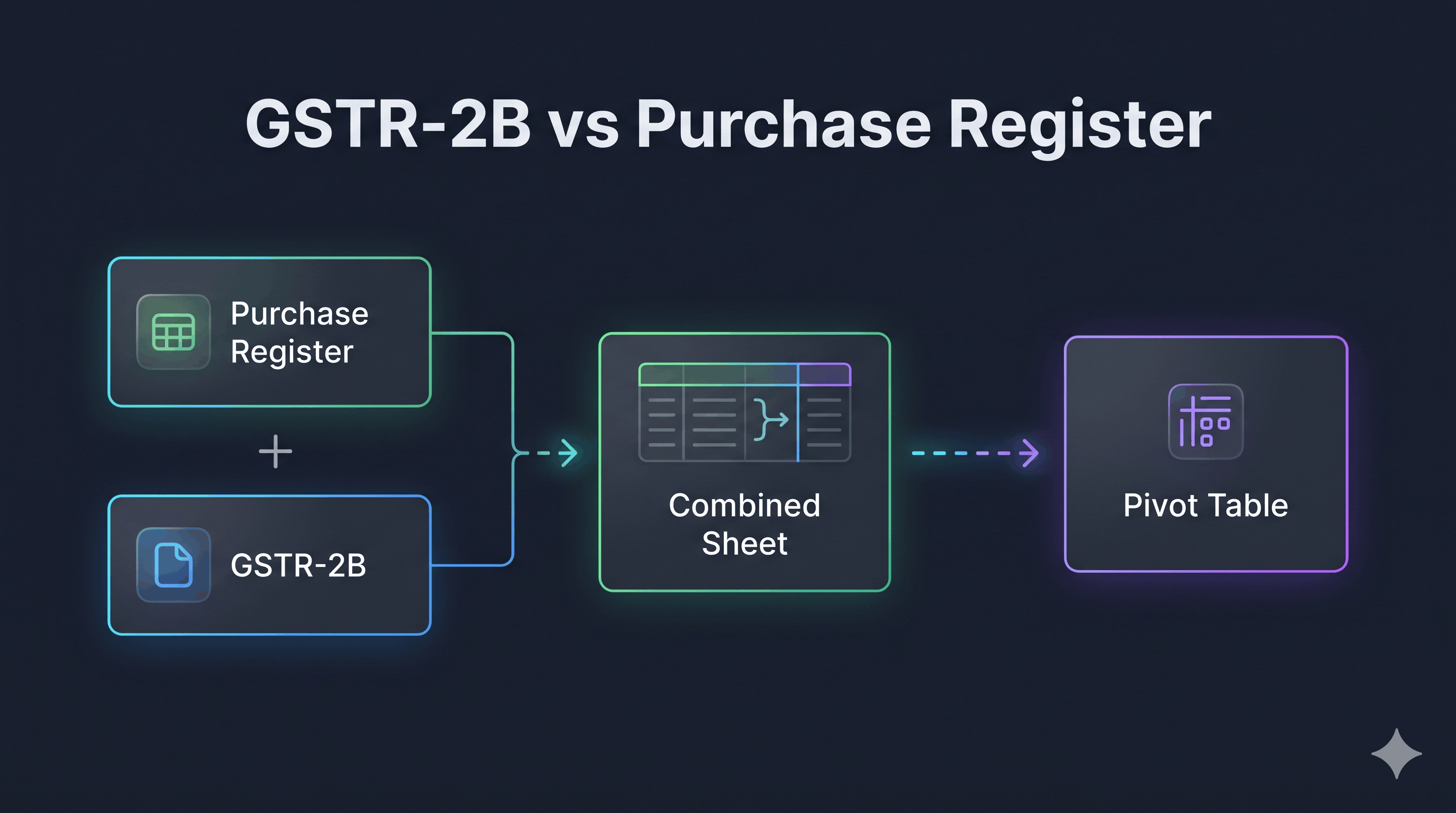
To reconcile GSTR-2B using an Excel Pivot Table, combine your cleaned Purchase Register (Books) and your GSTR-2B statement into a single Excel worksheet with standardized column headers (Supplier GSTIN, Invoice Number, Invoice Date, Taxable Value, IGST, CGST, and SGST), and add a "Source" column labeling each row as either "Books" or "GSTR-2B". Next, select the combined dataset, navigate to Insert > PivotTable, drag Supplier GSTIN and Invoice Number into the Rows field, drag Source into the Columns field, and drag Taxable Value and Total Tax into the Values field (set to Sum). Finally, add a Variance formula (= Books - GSTR-2B) adjacent to the Pivot Table: a result of 0 confirms an exact match, a positive balance flags an invoice missing in GSTR-2B, and a negative balance reveals an unrecorded invoice present on the GST Portal.
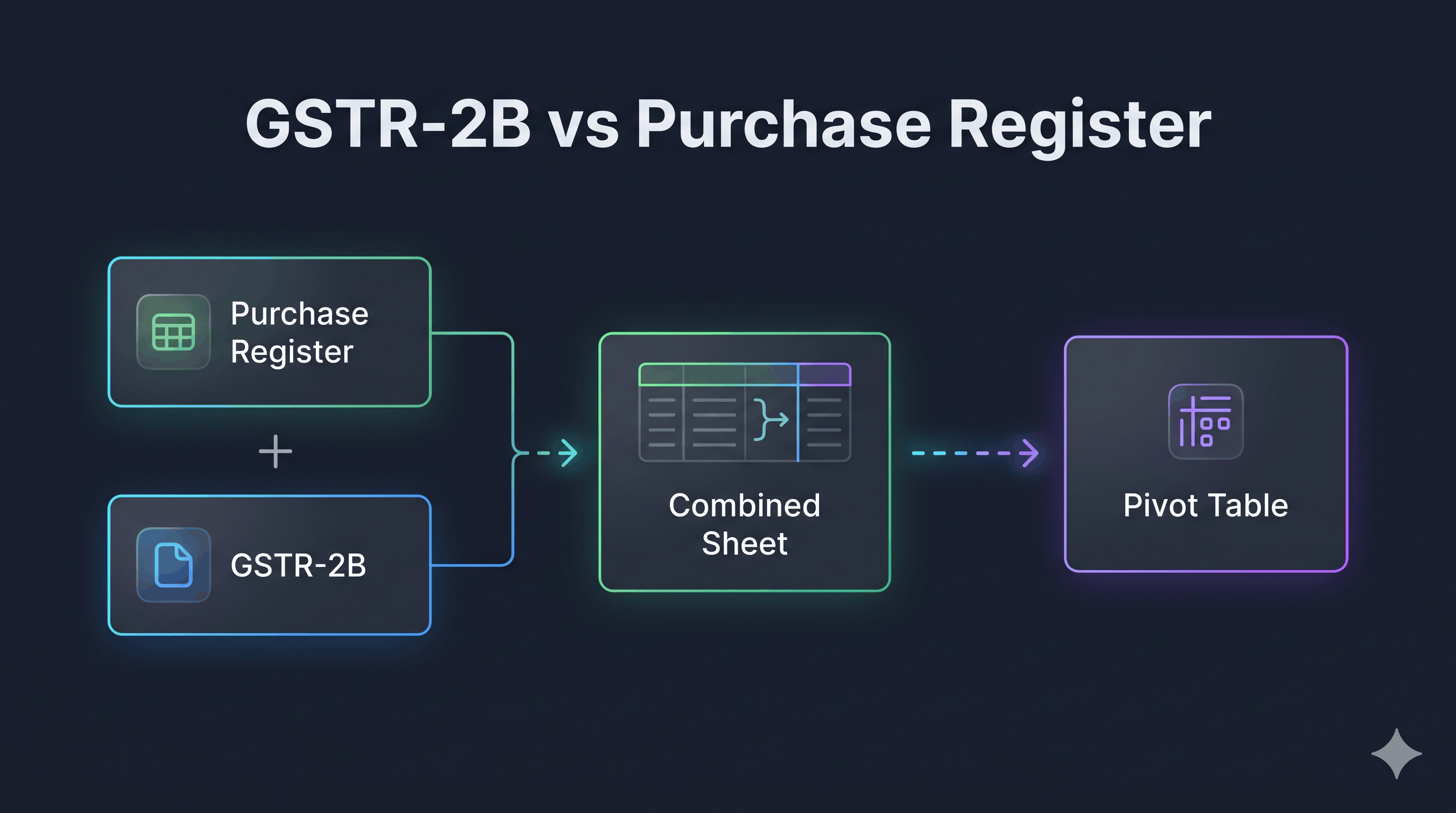
Workflow: Combining your Purchase Register and GSTR-2B into a single Excel Pivot Table.
Why Use a Pivot Table Over VLOOKUP for GSTR-2B Reconciliation?
Most accountants and tax professionals start reconciling GST returns with VLOOKUP or XLOOKUP. While lookup formulas work for small, clean datasets, they regularly break in real-world GST compliance for three major reasons:
Multi-Rate Invoices Split Across Rows: On the GST portal, if a single supplier invoice contains items taxed at both 12% and 18%, GSTR-2B splits that single invoice into two separate rows.
VLOOKUPonly fetches the first row it finds, creating a false value mismatch on every multi-rate bill. A Pivot Table automatically aggregates multiple tax-rate rows under a single invoice number before comparing values.One-Way Blind Spots: Running a
VLOOKUPfrom your Purchase Register to GSTR-2B only tells you which book invoices are missing on the portal—it completely misses invoices that exist in GSTR-2B but were never entered into your accounting software. You have to run a second reverse lookup on the other sheet to catch them. A Pivot Table displays both sides (BooksvsGSTR-2B) in a single unified view.Zero Formula Lag on Large Datasets: Thousands of
VLOOKUPformulas recalculate constantly and slow down workbooks, whereas a Pivot Table summarizes 10,000+ line items in seconds.
How the 2026 Invoice Management System (IMS) Impacts Your Reconciliation
Under the current GST framework (governed by Rule 36(4) and the mandatory Invoice Management System (IMS) workflow), you can only claim Input Tax Credit (ITC) in GSTR-3B if the invoice appears in your auto-drafted GSTR-2B statement.
Because suppliers save invoices throughout the month and recipients must Accept, Reject, or mark invoices Pending on the IMS dashboard before filing GSTR-3B (with GSTR-2B generating on the 14th of every month), running a fast Pivot Table reconciliation between the 14th and the 20th is essential. If you take any action on IMS after the 14th—such as rejecting a bogus bill or keeping a disputed credit note pending—you must click "Recompute GSTR-2B" on the portal before filing your return.
Setting Up a New GSTIN or Expanding to a New State?
Accurate monthly reconciliation starts with a compliant GST setup. If you are registering a new business entity or adding a branch in another state, the GSTN portal now offers a fast-track 3-day auto-approval route under Rule 14A for eligible taxpayers whose monthly B2B tax liability is under ₹2.5 lakh. However, strict Aadhaar e-KYC matching, Map My India geo-pinning, and mandatory 30-day bank account verification rules apply. Read our complete walkthrough on the New GST Registration Process 2026: Step-by-Step Guide (3-Day Approval) to get your ARN approved without manual query delays.
Step-by-Step Guide: How to Reconcile GSTR-2B Using a Pivot Table
Follow these 5 structured steps to match your Purchase Register against GSTR-2B with 100% accuracy.
Step 1: Download GSTR-2B and Export Your Purchase Register
Download GSTR-2B from the GST Portal: Log in to
gst.gov.in> Navigate to Services > Returns > Returns Dashboard > Select the Financial Year and Return Period > Click Download under the GSTR-2B tile and choose Generate Excel File. Open the workbook and locate the B2B tab (and B2B-CDNR for credit/debit notes).Export Your Purchase Register: Open Tally Prime, Zoho Books, Busy, or your ERP software and export your Purchase Register for the exact same tax period into Excel.
Step 2: Clean and Standardize Both Datasets (The Consolidated Table)
To feed both files into a single Pivot Table, you must append them into one master tab called Combined_Data with identical column headers.
Create a new worksheet named
Combined_Datawith these 10 columns:Source(Books or GSTR-2B)Supplier GSTINSupplier NameInvoice NumberInvoice DateTaxable ValueIGSTCGSTSGSTTotal Tax(=IGST+CGST+SGST)
Paste all rows from your Purchase Register first, and type
Booksin theSourcecolumn for all those rows.Directly underneath the last row of your Purchase Register, paste all rows from your GSTR-2B (B2B sheet), and type
GSTR-2Bin theSourcecolumn.
Pro-Tip: Clean Invoice Numbers to Prevent False Mismatches
Often, your accountant enters an invoice as INV-0045 while the supplier uploads INV/2026/0045. Add a helper column called Clean_Inv_No using this formula to strip extra spaces and standardize case:
=UPPER(TRIM(D2))If you want to remove slashes (/) and hyphens (-) so INV-2026-045 and INV/2026/045 match automatically, use:
=SUBSTITUTE(SUBSTITUTE(UPPER(TRIM(D2)),"/",""),"-","")Step 3: Practical Example of Combined Data
Below is a realistic sample dataset showing how your Combined_Data tab should look before creating the Pivot Table. Notice how INV-101 matches perfectly, INV-102 has a value difference, INV-103 is missing in GSTR-2B, and INV-104 is in GSTR-2B but missing from your Books:
Source | Supplier GSTIN | Supplier Name | Invoice Number | Taxable Value (₹) | Total Tax (₹) |
|---|---|---|---|---|---|
Books | 07AABCU9603R1Z2 | Apex Tech Pvt Ltd | INV-101 | 50,000 | 9,000 |
Books | 27AAACR5055K1Z5 | Metro Logistics | INV-102 | 1,00,000 | 18,000 |
Books | 09AAACH7409R1Z1 | Northern Steel Co | INV-103 | 75,000 | 13,500 |
GSTR-2B | 07AABCU9603R1Z2 | Apex Tech Pvt Ltd | INV-101 | 50,000 | 9,000 |
GSTR-2B | 27AAACR5055K1Z5 | Metro Logistics | INV-102 | 95,000 | 17,100 |
GSTR-2B | 29AABCT1332L1Z7 | CloudHost India | INV-104 | 25,000 | 4,500 |
Step 4: Insert and Configure the Pivot Table
Click anywhere inside your
Combined_Datatable and pressCtrl + A, then go to Insert > PivotTable.Choose New Worksheet and click OK.
In the PivotTable Fields pane on the right, drag and drop the fields into the four quadrants as follows:
Rows: Drag
Supplier GSTINfirst, thenInvoice Numberdirectly below it.Columns: Drag
Source(this splits the view side-by-side intoBooksandGSTR-2B).Values: Drag
Taxable ValueandTotal Tax(ensure both are set to Sum of..., not Count of...).
Fix the Layout for Easy Formulas:
Click anywhere inside the Pivot Table and go to the Design tab on the top Excel ribbon.
Click Report Layout > Select Show in Tabular Form.
Click Report Layout again > Select Repeat All Item Labels.
Click Subtotals > Select Do Not Show Subtotals (this gives you a clean, flat row-by-row comparison).
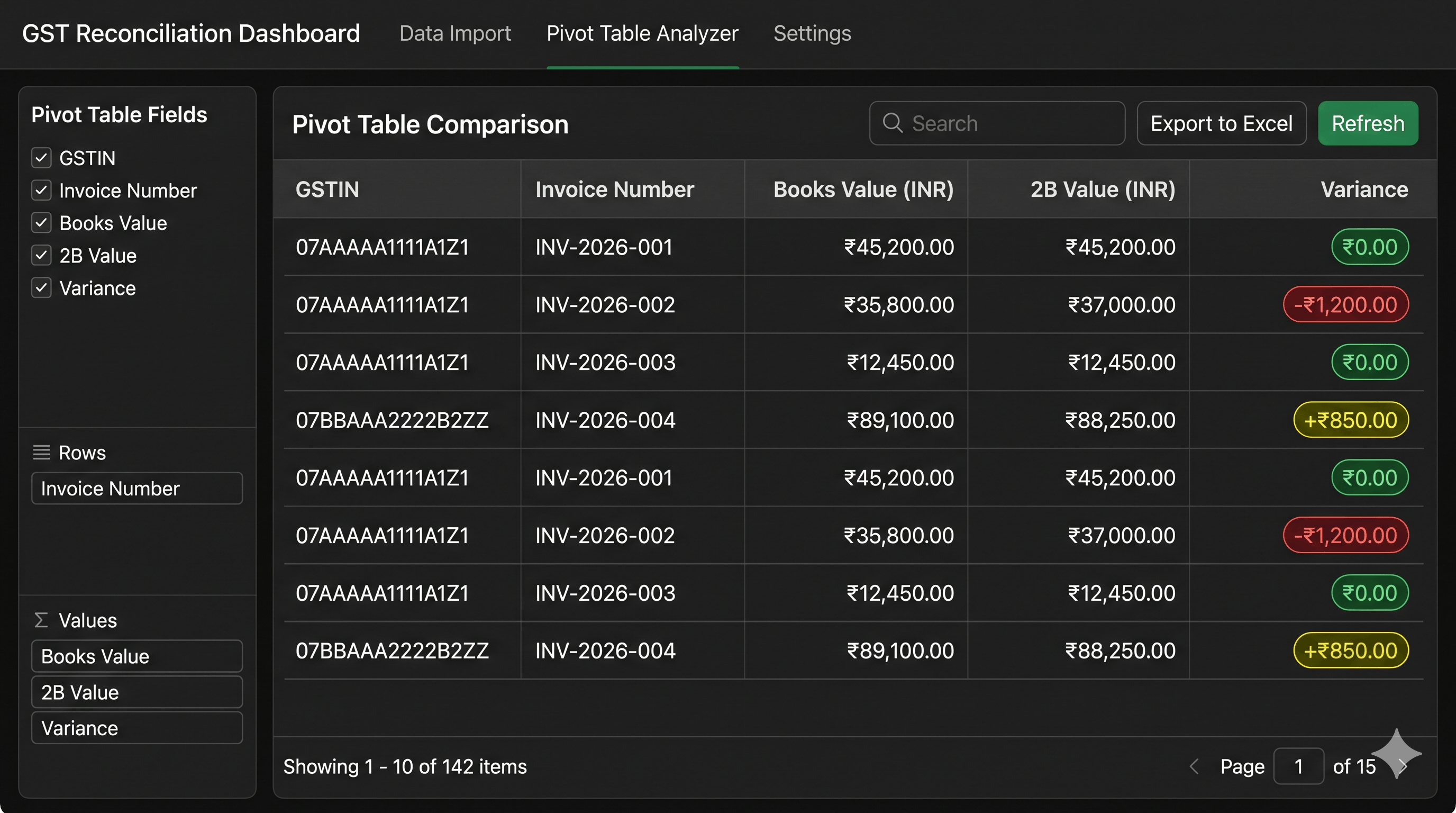
Pivot Table Comparison showing Books Value, GSTR-2B Value, and automated Variance calculation.
Step 5: Calculate Variance and Classify Mismatch Status
Once your Pivot Table is in Tabular Form, your sheet will display columns for Books - Taxable Value, GSTR-2B - Taxable Value, Books - Total Tax, and GSTR-2B - Total Tax.
In the two empty columns immediately to the right of your Pivot Table (say Columns G and H), create your Tax Difference and Reconciliation Status columns:
Tax Difference Formula (Column G): Subtract GSTR-2B Tax from Books Tax:
=E5-F5(Where
E5isSum of Total Tax (Books)andF5isSum of Total Tax (GSTR-2B)).Automated Status Formula with Rounding Tolerance (Column H): Use this nested
IFformula to automatically classify every invoice (allowing a ₹2 rounding tolerance):=IF(AND(E5>0, F5=0), "Missing in GSTR-2B (Follow up Vendor)", IF(AND(E5=0, F5>0), "Missing in Books (Check Bill/IMS)", IF(ABS(E5-F5)<=2, "Exact Match", "Value Mismatch (Verify Rate/Amount)")))
Resulting Pivot Table Output (From Our Example):
Supplier GSTIN | Invoice Number | Books Tax (₹) | GSTR-2B Tax (₹) | Tax Variance (₹) | Reconciliation Status |
|---|---|---|---|---|---|
07AABCU9603R1Z2 | INV-101 | 9,000 | 9,000 | 0 | Exact Match |
27AAACR5055K1Z5 | INV-102 | 18,000 | 17,100 | +900 | Value Mismatch (Verify Rate/Amount) |
09AAACH7409R1Z1 | INV-103 | 13,500 | 0 | +13,500 | Missing in GSTR-2B (Follow up Vendor) |
29AABCT1332L1Z7 | INV-104 | 0 | 4,500 | -4,500 | Missing in Books (Check Bill/IMS) |
How to Resolve Each Mismatch Category Before Filing GSTR-3B
Finding the discrepancies in your Pivot Table is half the battle; taking the right action on the GST Portal and in your books protects you from GST scrutiny notices:
Exact Match (
Variance = ₹0): Accept the invoice in the IMS dashboard (or leave it untouched to be deemed accepted) and claim 100% of the eligible ITC in Table 4(A)(5) of GSTR-3B.Missing in GSTR-2B (
Books > 0, GSTR-2B = 0): The supplier has either not filed their GSTR-1/IFF, filed it under B2C instead of B2B, or entered the wrong buyer GSTIN. Do not claim this ITC in the current month's GSTR-3B—claiming excess ITC over GSTR-2B triggers an automated Form GST DRC-01C notice. Contact the vendor immediately so they can include it in GSTR-1A (before you file 3B) or in next month's GSTR-1.Missing in Books (
Books = 0, GSTR-2B > 0): Check with your procurement team to see if a physical invoice arrived late (e.g., cloud software subscriptions, bank charges, or courier bills). If genuine, book the purchase entry and claim the ITC. If the invoice does not belong to you or is fraudulent, Reject it on the IMS dashboard and click Recompute GSTR-2B.Value Mismatch (
Books ≠ GSTR-2B): Usually caused by short-supplied goods, credit notes, or tax rate differences. Under IMS rules, either keep the invoice Pending while the supplier amends it via GSTR-1A, or claim the lower amount and reconcile the balance via a Credit/Debit note.
Related Read: How to Handle GST Mismatch Notices in 2026
Reconciling GSTR-2B with your Purchase Register protects your Input Tax Credit, but what happens when your outward sales in GSTR-1 don't match the tax liability paid in GSTR-3B? In 2026, the GST portal automatically flags even minor timing gaps or credit note errors with a DRC-01B notice, giving you just 7 days to reply before blocking your next GSTR-1 filing under Rule 59(6). Check out our comprehensive guide on GSTR-1 vs GSTR-3B Mismatch 2026: Notices, Penalties & How to Reply to learn how to classify discrepancies, use DRC-03 when needed, and avoid hefty 18% interest and Section 74 penalties.
Written by Abhishek madoliya
Tax VerifiedPublished by the TaxSolver editorial and compliance research group. All guidelines and tax calculations are reviewed against CBIC statutory notifications and CGST Act rules.
Frequently Asked Questions
Q:How do I reconcile GSTR-2B with my Purchase Register using a Pivot Table?
To reconcile GSTR-2B using a Pivot Table, combine your Purchase Register and GSTR-2B data into one Excel sheet with identical column headers and a "Source" column labeled "Books" or "GSTR-2B". Insert a Pivot Table, place Supplier GSTIN and Invoice Number in Rows, Source in Columns, and Taxable Value and Total Tax in Values. Subtract the GSTR-2B tax column from the Books tax column (=Books - GSTR-2B) to immediately spot exact matches (0), missing portal bills (>0), and unbooked portal invoices (<0).
Q:Why is a Pivot Table better than VLOOKUP for GSTR-2B reconciliation?
Unlike VLOOKUP, which only returns the first matching row and breaks when a single invoice has multiple GST tax rates (e.g., 12% and 18% items split across two rows in GSTR-2B), a Pivot Table automatically sums up all rows belonging to the same invoice number. Additionally, a Pivot Table performs a two-way reconciliation simultaneously—showing both invoices missing in GSTR-2B and invoices missing in your Books without writing reverse lookup formulas.
Q:How do I fix invoice number format mismatches (like INV/01 vs INV-01) in a Pivot Table?
Before creating the Pivot Table, create a helper column called Clean_Invoice_Number in your combined data sheet and use the formula =SUBSTITUTE(SUBSTITUTE(UPPER(TRIM(D2)),"/",""),"-",""). This removes spaces, slashes, and hyphens so that INV/2026/01 and INV-2026-01 become INV202601 and group onto the exact same row in your Pivot Table.
Q:Can I claim Input Tax Credit (ITC) if an invoice is in my Purchase Register but missing in GSTR-2B?
No. Under Rule 36(4) of the CGST Rules and Section 16(2)(aa) of the CGST Act, you can only claim ITC in GSTR-3B if the supplier has reported the invoice in their GSTR-1/IFF/GSTR-1A and it reflects in your GSTR-2B statement. Claiming excess ITC that is not in GSTR-2B triggers an automated Form GST DRC-01C intimation demanding an explanation or reversal with 18% interest.
Q:What should I do if my Pivot Table shows an invoice in GSTR-2B that is not in my Books?
First, verify with your team if the physical bill was received late (common with utility, courier, or SaaS bills). If it is a genuine business purchase and you have received the goods/services, record it in your books and claim the ITC. If the invoice was uploaded erroneously to your GSTIN by an unknown vendor, log in to the GST portal's Invoice Management System (IMS) dashboard, click Reject on that invoice, and click Recompute GSTR-2B before filing GSTR-3B.